The <model> Element
A proposed HTML element for embedding 3D content directly in web pages, rendered by the browser, not by script.
What is the <model> Element?
HTML allows the display of many media types through elements like <img>, <picture>, and <video>,
but it does not provide a declarative way to embed 3D content directly.
Displaying a 3D object today requires scripting a <canvas> element through WebGL,
a process that depends on third-party libraries
and cannot work in all contexts
(for example, in augmented reality where the browser needs to render from the user’s physical viewpoint without exposing sensitive spatial data to the page).
The <model> element is a proposed solution:
a new replaced element that embeds 3D content the same way <video> embeds video.
The content of the 3D model file appears as a 3D figure, inside a portal in the page.
The browser itself is responsible for rendering the model, which means it can take advantage of platform capabilities like stereoscopic display, environment lighting, and casting shadows from real-world objects that page-level code cannot safely access.
It is being developed by the W3C Immersive Web Community Group. Native support currently ships in Safari on visionOS.
How does this relate to the rest of the immersive web?
The <model> element handles inline 3D:
content anchored to a page layout that does not take over the screen or the camera feed.
WebXR covers the other end of the spectrum:
fully immersive sessions on headsets and AR overlays.
Think of them the way you think of <video> versus a full-screen streaming app:
one is a page element, the other is an experience.
Both are designed to work together.
Does your browser support <model>?
Checking support…
Live Example
Drag to rotate the helmet below.
The stagemode="orbit" attribute tells the browser to present the model on a turntable that the user can spin and zoom freely.
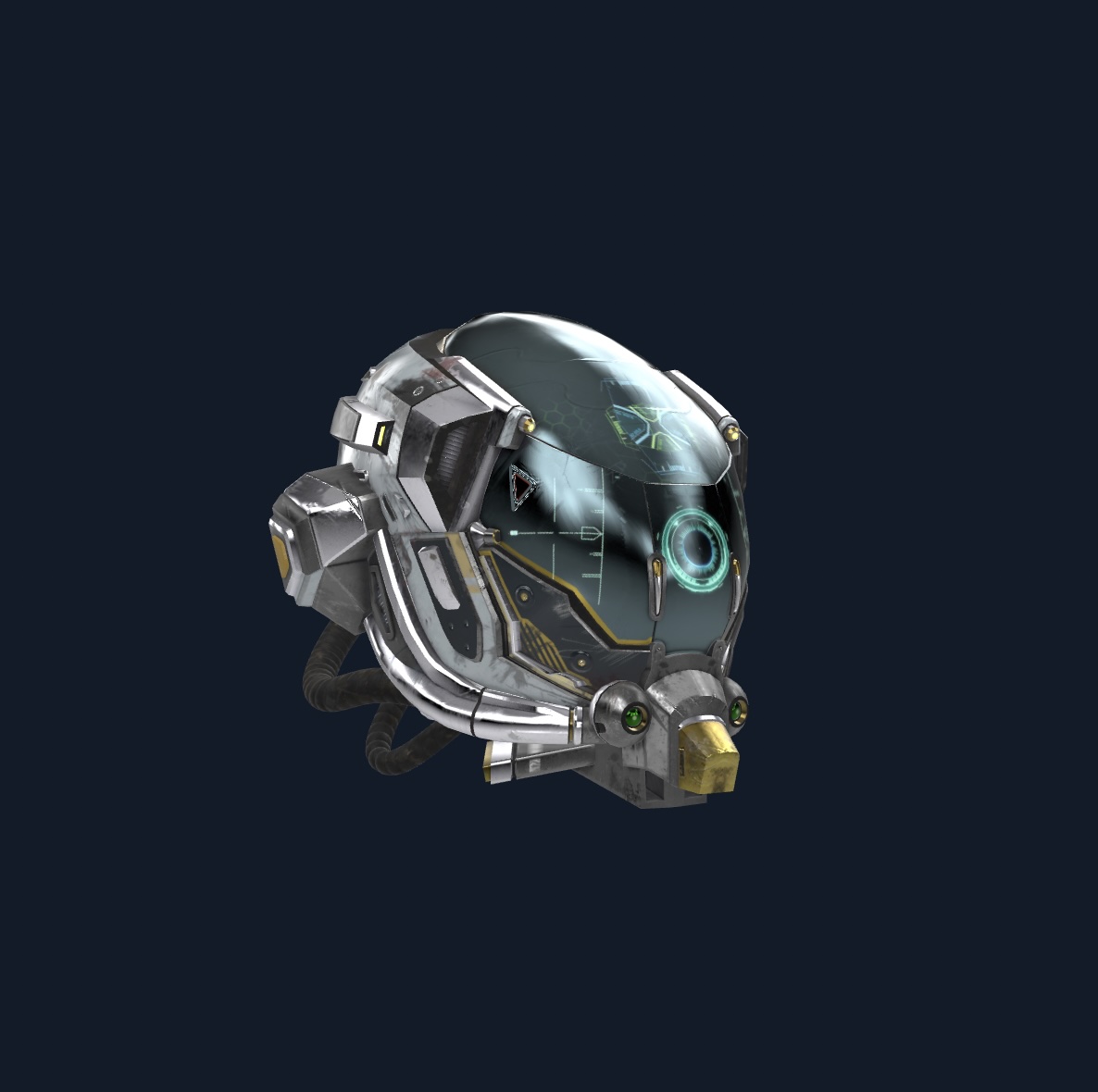
The markup for this example:
<model style="width: 300px; height: 300px" stagemode="orbit" alt="Damaged flight helmet 3D model">
  <source src="DamagedHelmet.usdz" type="model/vnd.usdz+zip">
  <source src="DamagedHelmet.glb" type="model/gltf-binary">
  <img src="DamagedHelmet.jpg" alt="Damaged flight helmet 3D model">
</model>
Quick Start
Like <video>, the <model> element uses <source> children to offer the same asset in multiple formats.
The browser selects the first format it supports:
<model style="width: 400px; height: 300px">
  <source src="chair.usdz" type="model/vnd.usdz+zip">
  <source src="chair.glb" type="model/gltf-binary">
</model>
Setting stagemode="orbit" allows the user to rotate the model directly within the element:
<model style="width: 400px; height: 300px" stagemode="orbit">
  <source src="chair.usdz" type="model/vnd.usdz+zip">
  <source src="chair.glb" type="model/gltf-binary">
</model>
Without stagemode, the model is displayed at its authored orientation with no built-in user interaction.
The entityTransform JavaScript property can be used to control the view programmatically in that case.
Key attributes
stagemode- Controls how the model responds to user input. When set to
"orbit", the browser provides built-in rotate interaction. When omitted, the model is displayed using its authored transform with no built-in manipulation. autoplay- Boolean attribute. When present, any animation embedded in the model file begins playing on load.
loop- Boolean attribute. When present, any animation repeats continuously.
width/height- Intrinsic dimensions of the element in pixels, just like
<img>or<video>. The element can also be sized with CSS.
Model API
The <model> element exposes a JavaScript API for controlling the 3D scene programmatically.
The ready promise
Know when your model is loaded and ready to use.
Because model files need to be fetched and decoded,
the element provides a ready promise that resolves once the source has been loaded and processed.
At that point, properties like boundingBoxCenter, boundingBoxExtents, and duration are available.
The bounding box properties are useful for understanding the size and position of the loaded content,
for example to place labels relative to the model or to calculate a custom camera framing:
const model = document.querySelector('model');

model.ready.then(() => {
  console.log('Center:', model.boundingBoxCenter);
  console.log('Extents:', model.boundingBoxExtents);
  console.log('Animation duration:', model.duration);
});
The promise rejects if the source cannot be fetched or is not a valid model asset.
entityTransform
Control the position, rotation, and scale of the model programmatically.
The entityTransform property is a read-write DOMMatrixReadOnly that controls the position, rotation, and scale of the model within the element’s viewport.
The coordinate system is right-handed and Y-up, with the origin at the centre of the view plane.
One unit equals one CSS metre.
A 10 cm (0.1 units) box inside a square 10 cm portal fills it exactly when the entityTransform is the identity matrix.
The browser computes an initial entityTransform that centres the model on its bounding box
and scales it to fit within the element’s portal.
Because DOMMatrixReadOnly methods like translate() and rotate() return new matrices,
you can derive transforms from the initial one without mutating it:
const model = document.querySelector('model');
let initialTransform;
await model.ready;
initialTransform = model.entityTransform;
model.entityTransform = initialTransform.translate(0, 0, -0.05).rotate(0, 45, 0);
Note that when stagemode is set to a value other than none,
the browser manages entityTransform in response to user input
and writes to the property are ignored.
Remove the stagemode attribute if you need programmatic control of the transform.
Fallback content
When a browser does not support <model>, it ignores the tag and renders whatever is inside it,
the same pattern as <video>.
This makes progressive enhancement straightforward:
place an <img>, a <video>, or any other content after the <source> elements as a fallback:
<model stagemode="orbit">
  <source src="chair.usdz" type="model/vnd.usdz+zip">
  <source src="chair.glb" type="model/gltf-binary">
  <img src="chair-preview.jpg" alt="A red chair">
</model>
The fallback can be anything:
a static image, a <video> with captions and audio descriptions,
or a WebGL-based component like <model-viewer>.
The explainer includes an expanded example showing a <video> fallback with full accessibility tracks.
Animations
Models can carry embedded animations. Set the autoplay attribute to start playback on load and loop to repeat. The playbackRate property scales playback speed in real time, the same way it does on <video>.
Try speeding up or slowing down the propeller:
The minimal markup:
<model src="plane.usdz" autoplay loop></model>
Add a speed slider by reading and writing playbackRate:
const model = document.querySelector('model');
const slider = document.querySelector('#speed');

await model.ready;
slider.addEventListener('input', () => {
  model.playbackRate = Number(slider.value);
});
Resources
- Model Element Explainer: motivation, design decisions, and usage examples
- Model Element Specification: the draft W3C spec, including the full IDL interface and attribute definitions
- Model Element on GitHub: spec source, issue tracker, and discussion